Showing posts with label Ubuntu. Show all posts

Sunday, April 29, 2012

Supercharge Ubuntu’s Unity Dash with Lenses & Scopes: 5 Lenses to Install

Supercharge Ubuntu’s Unity Dash with Lenses & Scopes: 5 Lenses to Install:

The dash on Ubuntu’s Unity desktop allows you to search for applications, files, music, and videos – but you’re not just limited to these. Install custom lenses and scopes to extend the dash with more features.
Most additional lenses and scopes are currently found outside the official repositories. Unfortunately, many useful lenses, including the dictionary lens, books lens, and Tomboy notes lens, aren’t yet available in PPAs for Ubuntu 12.04.

Sunday, October 10, 2010

Ubuntu 10.10 Improves Your Linux Desktop Experience [Screenshot Tour]

Ubuntu 10.10 Improves Your Linux Desktop Experience [Screenshot Tour]: "
sshot-16

From the install screen to a fully loaded desktop, Ubuntu 10.10 looks nicer and is easier to use than its predecessors. We’ll take a look at our favorite new features in Ubuntu’s newest version, appropriately released on 10/10/10.

The Ubuntu Font Debuts


Ubuntu 10.10 is the first version of Ubuntu to come with the Ubuntu font family, and it uses it for many user interface elements by default.

sshot-7

If you’ve been using Ubuntu for any length of time, the change is immediately noticeable. In our opinion, it’s a very positive change, but if you prefer the old font, you can change back to the Sans font in System > Preferences > Appearance.

sshot-18

Email, Chat and Microblogging Are Integrated Well


If you’re like us, you’ve been slowly moving from desktop apps to doing everything in your web browser. 10.10 refines the work that 10.04 started in integrating email, chat, and microblogging into the Ubuntu desktop – and it’s good enough that we’re switching back to desktop apps.

sshot-20

The mail icon in the top panel provides a central location for notifications from Evolution, Empathy and Gwibber. If you don’t use these apps for email, chat, and microblogging, this improved Ubuntu integration may be reason enough to switch.

The Software Center is Better Organized, Offers For-Pay Software


The software center has been improved all around. The first thing you’ll notice is a new section for featured and new software packages.

sshot-22

You will also see a few new entries in the list on the left. One is History, giving you a detailed list of the packages you’ve installed or upgraded.

sshot-23

Another new entry is For Purchase software. Right now there’s only one piece of software to buy, but we’re interested to see if this new avenue for selling Linux apps spurs new development from companies that have stayed away from Linux in the past.

sshot-24

The Installer is Simpler and Faster


Note: The installer shown is from the 10.10 Release Candidate. It should be functionally the same as the final 10.10 installer, though the final version may be updated to use the Ubuntu font.

There have been a few small but extremely useful changes to the installer on the Ubuntu CD. The first is a set of checkboxes that can greatly speed up the computer set-up process by doing some common tasks that you usually have to do manually after your system has finished installing.

sshot-25

The second and most impressive change is that the system will actually start the installation process while you go through the tedious steps of setting your time zone, main user account, and so on.

sshot-26

We did experience some slowdown when trying to fill out some of these screens, but once we finished filling them out, the system had already almost finished installing. Why hasn’t anyone thought of this before?

Other New Additions


While those are the new features we think are the most exciting, there are many other minor additions and changes.

The Update Manager now shows displays a short description more prominently than the actual package name.

sshot-27

If you’re playing music with Rhythmbox, song information and simple controls are available in the volume control applet in the top panel.

sshot-10

Shotwell is now the default application for organizing and making simple changes to photos, replacing F-Spot.

sshot-28

And, of course, many software packages have been updated to more recent versions.

What’s your favorite new feature of Ubuntu 10.10? If you already use 10.04, are these changes enough to get you to upgrade? Let us know in the comments!

Download Ubuntu 10.10

Friday, August 20, 2010

Gmail Voice and Video Chat Comes to Linux


Google has released a highly-requested Gmail feature for Linux users: video and voice chat.

Ubuntu and other Debian-based Linux distributions are supported, with RPM support coming soon. To try it out, download the required plugin at gmail.com/videochat.

The release may be good news, but it leaves a sour taste for many Linux users, since it took Google nearly two years to release this feature for Linux. Yes, it’s nice to finally have the feature, but it won’t change the oft-heard notion that Linux is just an afterthought to Google.

source: http://bit.ly/95Adkc

Tuesday, June 22, 2010

Ruby On Rails environment on Ubuntu 10.04

Ruby On Rails environment on Ubuntu 10.04: "
Hi,

I think this is my first technical post in the blog, so today I faced some problems while building the Ruby on Rails environment on my machine. I just like sharing this knowledge with you.

First, in this post we will make the following:

  1. Ruby 1.9.1
  2. Rails 2.3.5
  3. Thin server.
  4. MySQL server.

1. Ruby 1.9.1

The following commands mainly download the Ruby source code and compile it and so on
Just you have to install the following libraries:
sudo apt-get install build-essential libssl-dev libreadline5-dev zlib1g-dev

move to /usr/local/src to download source code and compile it in this folder
cd /usr/local/src

Download the source code, and unpack it
sudo wget ftp://ftp.ruby-lang.org/pub/ruby/1.9/ruby-1.9.1-p0.tar.gz
sudo tar xzf ruby-1.9.1-p0.tar.gz
cd ruby-1.9.1-p0


Now, you have to check the version of gcc if it is 4.4 some errors will occur
dpkg -l | grep gcc

if gcc 4.4 found then you have to edit the cont.c file to go on. Open it up, and change the lines 90, 270 and 317 from #elif to #else.
sudo gedit cont.c

then write the following commands in terminal
sudo ./configure –prefix=/usr/local/ruby-1.9.1
sudo make
sudo make install


After these steps you have finally installed Ruby 1.9.1, to check its version
cd /usr/local/ruby-1.9.1/bin
ruby -v

output like that: ruby 1.9.1p0 (2009-01-30 revision 21907) [i686-linux]


Now, the ruby commands such as ruby, rake, irb, … etc are accessed only from /usr/local/ruby-1.9.1/bin, and all the commands are found in /usr/local/bin so just make link for the commands in ruby-1.9.1/bin and put them in /usr/local/bin
sudo ln -s /usr/local/ruby-1.9.1/bin/ruby /usr/local/bin
sudo ln -s /usr/local/ruby-1.9.1/bin/rake /usr/local/bin
sudo ln -s /usr/local/ruby-1.9.1/bin/gem /usr/local/bin
sudo ln -s /usr/local/ruby-1.9.1/bin/irb /usr/local/bin
sudo ln -s /usr/local/ruby-1.9.1/bin/ri /usr/local/bin
sudo ln -s /usr/local/ruby-1.9.1/bin/rdoc /usr/local/bin


2. Rails 2.3.5
Now, Ruby 1.9.1 is installed successfully on your machine, just add this command to terminal to install the Rails 2.3.5 gem
sudo gem install rails -v=2.3.5

3. Thin server
Also to install Thin application server gem
sudo gem install thin

4. MySQL server
Finally to install MySQL server for DB
sudo apt-get install mysql-server
and while installing it is required to set the root password

References: http://labnotesh.wordpress.com/2009/04/28/compiling-ruby-19-with-gcc-4/

Hope that it is some how useful for you

Enjoy :)


Source : Mohammad Kotb's Blog

"

Sunday, January 10, 2010

How to choose a Linux distribution flow chart

How to choose a Linux distribution flow chart: "

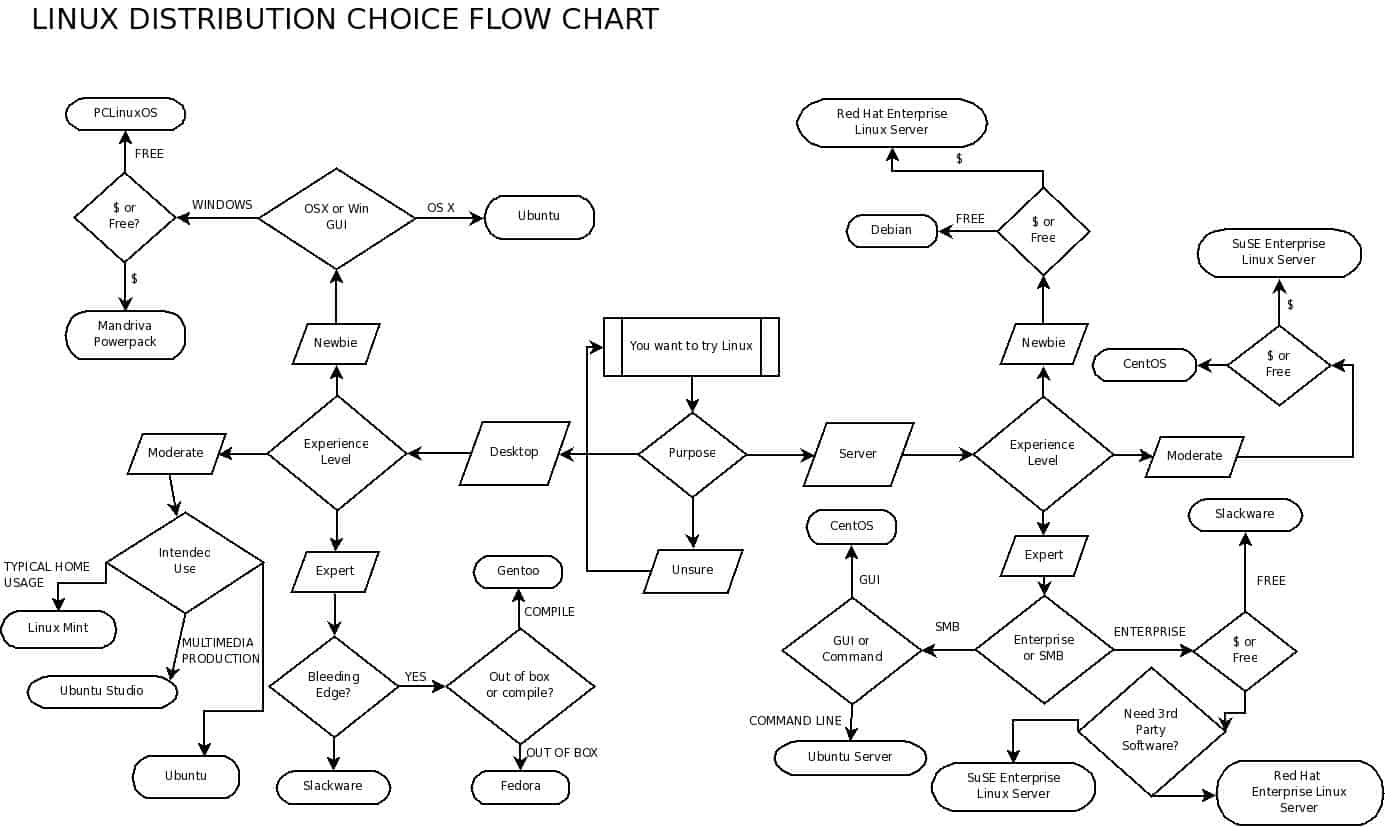
The new year is here and you have made a resolution to give Linux a try. A noble resolution and one that will be met, initially, with much confusion. Why? Linux isn’t like Windows where your choice is limited to a single release with different features (depending upon how much you want to spend) or OS X where you have no choice but to take what Apple gives you. No. Linux has a multitude of choices. In fact, if you go to Distrowatch you will see at least 100 distributions listed in the page hits ranking section. Think about it, 100 different versions of Linux. And that’s not all of them. There are many more variations out there, and more coming every day. And then, you add into the mix the enterprise level distributions that not only come with a price, but support, and the ever-staggering number continues to grow.


So how does a new-to-Linux user decide? With so many choices, how is it possible to start off on the right path? Without help, it’s not easy. My first Linux distribution was Caldera Open Linux 1. It was rough and nearly pushed me back to Windows. It wasn’t until I found Red Hat (4.2 at the time) that I found the right distribution for the right purpose. That was ten years ago and the choices were much more limited.


Because the new year is here, and I am always one to want to help people make the move to Linux, I thought I would create a flow chart to help Linux users make the right choice. Is it perfect? Probably not. Do I include every possible choice? No way. The distributions I have included are:


  • Ubuntu
  • Ubuntu Server
  • Ubuntu Studio
  • Slackware
  • Fedora
  • Red Hat Enterprise Linux Desktop
  • Red Hat Enterprise Linux Server
  • SuSE Enterprise Linux Server
  • SuSE Enterprise Linux
  • Gentoo
  • Mandriva Power Pack
  • CentOS
  • PCLinuxOS
  • Linux Mint
  • Debian

It’s still a healthy list of distributions, but not everyone. And I’m sure there will be those that disagree with my approach. That is understandable. So much so, that I am (in the spirit of open source) including my .dia file for the flowchart. NOTE: The .dia file is hosted on my domain (outside of ghacks). I would love to see how readers change my flowchart to better fit their opinions/experiences.


Figure 1


But for those that do not want to bother messing with editing the flowchart, and just want to see it in all its scattered “glory”, take a look at Figure 1.


One of the first things you might notice is the predestination paradox (temporal causality loop) I created for those unsure of their purpose for choosing Linux.


There might also be some initial confusion as to why I have included, in some choices, distributions that are rather similar. For example: The difference between Mandriva and PCLinuxOS might not be that great, but notice I have included the Mandriva Power Pack which includes pre-installed flash, various codecs, and Mandriva support.


Final thoughts


I hope this flowchart makes your choice of Linux an easier one. Even more, I hope this flow chart helps you to start your new year off on an open source foot, and that you find this path a rewarding one.

Thursday, September 10, 2009

Microsoft Targets Linux (and Macs) with Latest Chart-Based Propaganda [Operating Systems]

Microsoft Targets Linux (and Macs) with Latest Chart-Based Propaganda [Operating Systems]: "

Microsoft's marketing team considers ridiculously skewed comparison charts to be a killer weapon in the war on competitors. It's only natural, then, that the Redmond giant would provide retail store employees with a surreal juxtaposition between Windows 7 and Linux to 'explain' for the Linux-curious.

Update: Ars Technica digs up the related Windows 7 'comparisons' against Macs, which feature similarly skewed takes on familiarity, compatibility, and 'value.'

The chart is part of an ExpertZone training course provided by Microsoft to retail employees at stores like Best Buy. After the training, the employees are expected to be able to better explain the merits of software like the soon-to-launch Windows 7. Microsoft felt it necessary, however, to specifically compare Windows 7 to Linux—something we usually save for idealistic, charged-up commenters.

In this case, though, it has to be pointed out that Linux can and does play 'the games your customers want,' specifically the World of Warcraft example mentioned, through the WINE project, and the idea that Linux has compatibility with 'few' cameras, iPods, MP3 players, printers, and scanners is definitely a stretch of a comparison. Linux, in fact, keeps legacy support intact for many of the printers, scanners, and other devices that Windows Vista and 7 have left behind, and generally supports newer models from the major manufacturers.

Video chat on 'all major IM networks' just got better on Linux, actually, with the release of Pidgin 2.6, and the lack of access to Windows Live Essentials has likely not caused many a netbook owner to make a red-faced return trip to Best Buy.

All that is not to say that a Linux machine, presumably a netbook in this case, is the best choice for any computer user not interested in configuring his machine a little if they're looking for app use beyond basic web surfing and document access. Let's hear your take on Microsoft's talking points in the comments.

Five Features We Want to See in Ubuntu [Lifehacker Wishlist]

Five Features We Want to See in Ubuntu [Lifehacker Wishlist]: "

Ubuntu isn't the only Linux operating system, but it's where the dream of a usable, completely free desktop is closest to reality. If every Ubuntu developer were assembled at one place, here are five things we'd ask them to accomplish.

Image by Andrew Mason.

Ubuntu's not a single service or application developed by a single-minded team, so our wish list is a bit broader than just asking for five features or tweaks we'd like to see. Ubuntu is an open-source distribution of Linux, improved and developed for by thousands of developers around the world, and it incorporates the efforts of many of the projects it relies on, like the GNOME desktop, open-source drivers, apps like Firefox and Pidgin, and many more.

But let's say there were a worldwide summit on how Linux could become a viable, convenient desktop for more people, and let's pretend I had a panel approved at said summit at which I could present to all the devs. I wouldn't argue about hardware compatibility, or pretend that games are an end-all issue. I'd admit I'm biased toward thinking about Apple computers more than Windows, because Apple has gained ground with a surprisingly similar product, and some corporate, locked-down environments will never switch from Windows.

Then I'd ask for these five things:

An App Store better than Apple's

One of Linux's most touted advantages over Windows and Mac systems is that, on distributed systems like Ubuntu, you can install thousands of applications right from your system, without having to Google, download, double-click, and Next, Next, Next through installation screens. That advantage is lost if you put all your applications in a big pile of searchable stuff labeled "Graphics" or "Sound & Video"—or, even worse, ask users to copy-paste repository sources and installation commands into text files and terminals. Those are great backup and uber-geek solutions, but terribly off-putting to those just trying to get a system up and working.

New users are coming to Linux looking for their Windows or Mac equivalents—Photoshop, iTunes, Winamp, AIM—and they're wondering what other users like them recommend in very particular areas. They're in a position similar to that of a new iPhone owner when it comes to software. Only certain applications will work on this very particular software setup, and they must be sought out. Apple's iPhone App Store is an utter mess when it comes to organization, search, and layout, but even its simple Top 10 Paid and Top 10 Free are more guidance than what Ubuntu users are being offered. The default, installed Ubuntu applications are okay, maybe a little esoteric in spots, but Ubuntu's builders and coders shouldn't be the taste makers.

Create a clean, tagged, search-friendly database of everything that runs on a standard Ubuntu desktop. Offer wiki-style, group-edited write-ups, reviews, and (maybe) ratings of what the applications do and what non-Linux apps they are similar to, and put it all on the freely accessible web. This kind of thing is already possible with Ubuntu's apt-url handler—all that's missing is the common URL.

Integrate dual-booting and virtualization

Show up fresh-faced at an Apple Store and ask how your copy of WordPerfect would run on a Mac, and a T-shirted Genius will gradually guide you into Parallels or VMWare Fusion, or possibly suggest using Boot Camp to occasionally run Windows when needed. Ubuntu isn't really any different. If Ubuntu wants to reach beyond the technical-minded, it should eliminate the need to learn about partition tables to fit a Windows installation next to Linux.

Create something less imposing and more visually appealing than the default GRUB menu. Keep improving on the Ubuntu installer to better explain what one's multi-system installation options are. Do your best to make something like installing and running VirtualBox easy for a beginner, or break apart its open-source guts and integrate it so tightly into Ubuntu that an 'Open in Windows 7' right-click command isn't some laughable dream.

A wave of right-brain rethinking

The achievements of a network of left-brain-oriented, technical-minded developers in creating a Unix-based system that installs on just about anything with a processor can never be truly appreciated. Apple created a Unix-based OS that installs on a smaller subset of computer hardware, but has a history and tradition of investing a whole lot of right-brain thought into making technically advanced features look clean and simple. Projects like Mac4LIn are mimicry at its finest, and interfaces like GNOME-Do Docky theme bring both Quicksilver and Dock functionality to Linux. What Linux and Ubuntu really need now, though, is something new.

Palm's Pre smartphone received generally rave reviews for its "deck of cards" interface, which was actually new and not hard to get used to. While it doesn't seem to be winning a sales war against the iPhone, Ubuntu has a distinct advantage—it's free. Something free and designed to look kinda-sorta like XP out of the box once did won't win hearts and minds. Something with a useful but new look, with advantages in speed, openness, and hardware support, will get notice. To paraphrase what Mac guy John Gruber said about the Android opportunity—set your goals such that you can claim victory with just a fraction of Windows and Apple's installation base.

Awesome cloud-based backup

When the Linux-based Chrome OS drops, one thing we know it's going to try for is starting up in 'a few seconds.' Ubuntu's next release, meanwhile, is aiming for 10 seconds. Unless they're both pitched primarily for mayflies, that's not an insurmountable difference, but Chrome OS will also offer no-worry backup of all of a user's documents, emails, SMS messages, and whatever other webapps, because it all gets done through a web browser, or, more likely, a browser running inside a stand-alone application shell.

There are a significant number of folks who aren't cool with having everything they do in the cloud, and might want hard copies of everything. More likely, it's probably wise not to use Google as the linchpin of one's entire productive life, because account lock-outs and password hacks do happen. Backup, however, is one of those things that's more powerful when there's a copy far away from your system. Ubuntu already has Ubuntu One, but right now it's a less convenient Dropbox look-alike, because it's accessible only through Ubuntu or the web. It's open source, so Windows and Mac synchronization tools may eventually show up, designed by committee. But if a backup service is getting accolades from true geeks for being paradigm-shifting and mind-freeing, you'd do well to learn its lessons, or potentially open talks in the interest of open-sourcing it.

Good video editing software

This one's a bit more fiddly, but definitely worth mentioning. Trying to edit a video so that continuous sound played over different clips, two Lifehacker editors found themselves amazed at how difficult, or at least hard to find out, iMovie '09 had made such a task on a Mac. On Windows, there's the free Windows Movie Maker, which has actually lost features since the XP version, and then professional packages starting at $450 dollars. In Linux, there are a range of options, almost none of them with a finished feel, and all of them front-loaded with codec, dependency, and interface headaches galore. OpenShot seems like a step in the right direction. While Ubuntu isn't in the video software business, the many folks who contribute time, thought, and sometimes money to the project could consider this a serious missing link in the Linux application space.


Our imaginary panel comments at the Worldwide Ubuntu Summit are now finished, but we left some time for comments at the end. Tell us what you think Ubuntu needs, or needs to change, to become a great alternative desktop in the comments.


Friday, August 28, 2009

OpenShot is Video Editing Software for Ubuntu

OpenShot is Video Editing Software for Ubuntu: "

Video editing is an important aspect of our work. I was looking for some video editing solution for my Ubuntu machine and came across this useful piece of software which makes the editing of videos a very easy. The software is called OpenShot and is a free and open source solution for editing videos on Linux environment.


Earlier you had to compile the program on your Linux machine to be able to use it. However, the developer(s) have come out with an easy solution by releasing deb files for the same.


Features of OpenShot


  • Support for many video, audio, and image formats (based on FFmpeg)
  • Gnome integration (drag and drop support)
  • Multiple tracks
  • Clip resizing, trimming, snapping, and cutting
  • Video transitions with real-time previews
  • Compositing, image overlays, watermarks
  • Title templates, title creation
  • Solid color clips (including alpha compositing)
  • Support for Rotoscoping / Image sequences
  • Drag and drop timeline
  • Frame stepping, key-mappings: J,K, and L keys
  • Video encoding (based on FFmpeg)


Download and Install OpenShot on Ubuntu


In order to run and start using OpenShot on Ubuntu we will have to download the respective deb file and install it. Download the respective deb file based on the version of your Ubuntu and CPU from the download page (link below). You’ll also have to download the dependency package from the same page (dependencies_32_904.tar.gz)


Opebshot Download


Install OpenShot On Ubuntu


Once you have downloaded the respective deb files (The main package and dependency files) start the installation by installing the dependencies first. Double click the dependency package (dependencies_32_904.tar.gz) and install all the 4 deb files:


  1. openshot-ffmpeg_git-2623d8f-1_i386.deb
  2. openshot-frei0r_1.1.22-1_i386.deb
  3. openshot-mlt_0.4.3-1_i386.deb
  4. openshot-x264_0.67.1173-1_i386.deb


OpenShot_dependencies


Once you have installed all the dependency package we’ll install the main package (openshot.deb). Double click the package to install it.


Opebshotdeb


Running OpenShot


Once installed you can run the OpenShot video editor by going to Applications \ Sound & Video \ OpenShot Video Editor.


OpenShotMenu


The main interface is nicely laid out and easy to use.


OpenShot1


Importing the video in OpenShot


Importing videos for editing is very easy all you have to do is click File \ Import Files.


OpenShot4


OpenShot2


Exporting videos is very easy and you can export your video in multiple formats. Click the red button to export the edited video.


OpenShot5


You can choose from several different effects and video settings.


OpenShot3


List of Features


The following is an impressive full list of features for OpenShot:


  • Support for many video, audio, and image formats (based on FFmpeg)
  • Gnome integration (drag and drop support)
  • Multiple tracks
  • Clip resizing, trimming, snapping, and cutting
  • Video transitions with real-time previews
  • Compositing, image overlays, watermarks
  • Title templates, title creation
  • Solid color clips (including alpha compositing)
  • Support for Rotoscoping / Image sequences
  • Drag and drop timeline
  • Frame stepping, key-mappings: J,K, and L keys
  • Video encoding (based on FFmpeg)


OpenShot is a stable and easy to use video editor for Ubuntu and is also available in Spanish, French, and Italian.


Download OpenShot for Ubuntu Linux

Thursday, August 13, 2009

Avant Window Navigator for Ubuntu Linux

Avant Window Navigator for Ubuntu Linux: "

Avant Window Navigator (AWN) is an application launcher and dock which would redefine your Linux experience. The good part is it’s highly customizable and hence will fit perfectly well with your Ubuntu theme. Let’s see how to install and customize AWN on your Ubuntu machine.


Description


(AWN/Awn) is a dock-like navigation bar for the Linux desktop that positions itself at the bottom of the screen. It can be used to keep track of open windows and behaves like a normal window list.


Final Result


awn


Installation


We are going to install the testing package of AWN via the developer’s PPA (Personal Package Archive). I am using Ubuntu 9.04 (Jaunty Jackalope).


Adding the PPA Repositories


1. Go to the PPA page (Mentioned at the end of the post) and choose your Ubuntu version (In my case it’s Jaunty (9.04).


AWN PPA


2. We’ll now add the sources.list entries to software sources, for Ubuntu 9.04 to know about the repositories.


3. To do so go to System > Administration > Software Sources.


awn2


4. Go to the tab that reads Third-Party Software.


5. Click the Add… button and add the following lines one by one.


deb http://ppa.launchpad.net/awn-testing/ppa/ubuntu jaunty main


deb-src http://ppa.launchpad.net/awn-testing/ppa/ubuntu jaunty main


awn4


The final result should look like this (Make sure both the check boxes are checked).


Final Third Party Software


Don’t close this window as yet. Follow the steps below to add the PPA keys associated with AWN.


Adding the PPA keys


On the same AWN Testing PPA page (Mentioned at the end of the post), you’ll see a line that reads Signing Keys.


Signing Keys


1. Click on the link 1024R/BF810CD5 and you’ll reach the public key server page.


PGP public key AWN


2. Open gedit by hitting ALT+F2 and typing gedit. Copy the code under “—–BEGIN PGP PUBLIC KEY BLOCK—–” in your gedit.


gedit


3. Save the file as PGPAWN on your desktop.


4. We’ll now import this PGP (PGPAWN) security key. On the Software Sources Window select the tab that reads “Authentication” and click “Import Key File…”. Locate the PGPAWN file which we saved on desktop and import it.


PGP AWN Key


5. Now click the Close button to close Software Sources windows. You’ll be prompted with a message to reload.


AWN Reload


6. Click reload to update the software sources.


Installing AWN-Window-Navigator and AWN-Extras


1. Open a terminal window by hitting ALT+F2 and typing “gnome-terminal” (without quotes).


terminal


2. Copy and paste the following line in your terminal window to install AWN-Navigator.


sudo apt-get install avant-window-navigator-trunk


terminalAWN


3. Type “y” to install.


Similarly we’ll install AWN-extras-applets by pasting the following lines in the terminal window.


sudo apt-get install awn-extras-applets-trunk


awn extraa


Launching Avant-Window-Navigator


You can now launch AWN by going to Applications > Accessories > Avant Window Navigator.


AWN


You’ll now have AWN running. It should look this:


AWN


Doesn’t look so great. Right! Let’s pimp it up and make it a real eye candy dock.


Delete the panel


In the above screenshot you’d notice a panel behind the dock. Let’s get rid of it.


Right Click on the panel and click “Delete This Panel”. Confirm by hitting the Delete button.


delete panel


With the panel gone, AWN looks neat but not as neat as we want it to look. So let’s see how we can pimp it up.


Configuring Avant Window Navigator


Click on the first icon which is “AWN-Manager” to bring up the AWN Manager window.


AWN manager


General Preferences


1. Under the General Preferences in the General Tab, check the box which reads “Automatically start AWN on login”. This would make sure that AWN is started with every new session of Ubuntu.


2. I’ll also check the box that reads “Maximized windows don’t cover the bar” so that I have AWN visible all the time (You’ll have to restart AWN for this setting to take affect)


Bar Appearance


I don’t like the flat bar so I’ll go to the tab that reads “Bar Appearance” and under the drop down menu Looks, select “3D look”.


3d AWN


As a result of this your AWN bar will look like this:


AWN 3d


You can experiment with rest of the settings.


Adding Applets to your AWN


Don’t settle with just the above configuration. We can add various Applets to our dock.


Start AWN Manager and select Applets.


AWN Applets


From the list of avaialble applets select the one you want to have on your dock. I added a few


applet


Theme AWN


Avant Window Navigator comes with a decent theme. However, there is an option of adding more themes. You can download the themes from the official theme page mentioned at the end of this post.


1. Download the theme from the theme page.


2. Open AWN Manager and select Themes.


3. Click Add to install the theme


theme AWN


Click Apply to use the selected theme. You can select a theme that best compliments your desktop wallpaper. Feel free to try other settings to see how creative you can get!